Installation
Windows
-
If you’re on Windows, follow this guide to install both VSCode and WSL: https://code.visualstudio.com/docs/remote/wsl.
WSL will allow us to use the Linux environment on Windows without requiring a virtual machine or dual booting. In our case, we need to use a C++ compiler and Git.
-
Check that a C++ compiler is installed by entering this command into the Windows Terminal:
g++ --version
macOS
Install From Publishers
-
If you’re on macOS, you can follow this guide to install VSCode: https://code.visualstudio.com/docs/setup/mac.
-
You will also need to install Xcode from the App Store to install a C++ compiler and Git.
-
Check that a C++ compiler is installed by entering this command into the terminal:
clang++ --version
Install with CLI
Alternatively, you can use the CLI to install VSCode and Xcode.
-
Make sure you have Xcode installed first:
xcode-select --install -
Install Homebrew:
/bin/bash -c "$(curl -fsSL https://raw.githubusercontent.com/Homebrew/install/HEAD/install.sh)" -
Then install VSCode:
brew install --cask visual-studio-code -
Check that a C++ compiler is installed by entering this command into the Windows Terminal:
clang++ --version
VSCode
For this course, we will be using VSCode as our primary text editor.
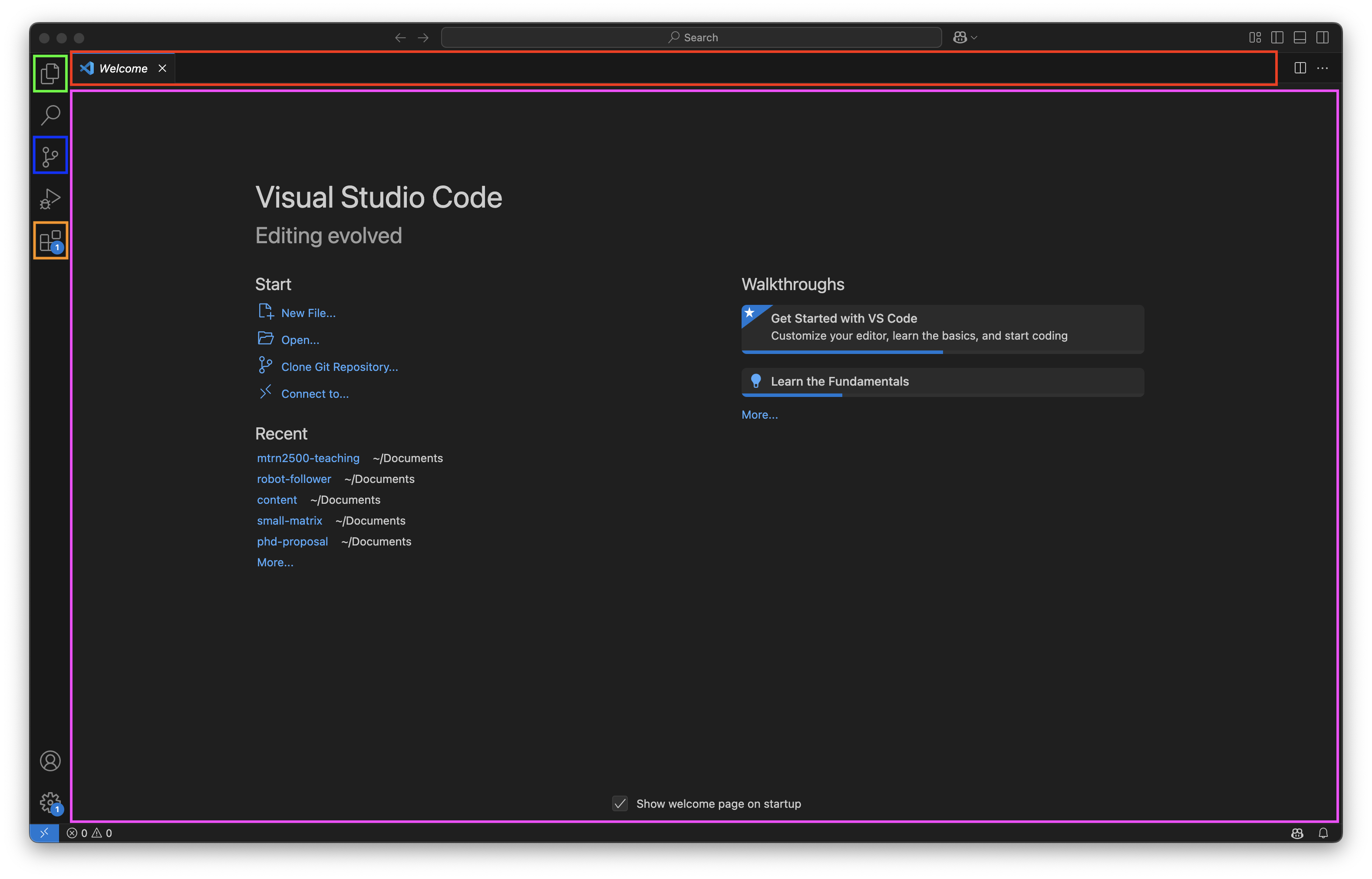
VSCode GUI
- File tabs (red): Opened files are tabbed here.
- File viewer (purple): View and edit file contents.
- File explorer (green): Shows folder/file structure.
- Source control (blue): Shows ongoing file changes.
- Extensions (orange): Install and view VSCode extensions.
Using a Terminal
You can open a terminal in VSCode by clicking Terminal > New Terminal from the navigation bar or with this shortcut: ctrl + `.
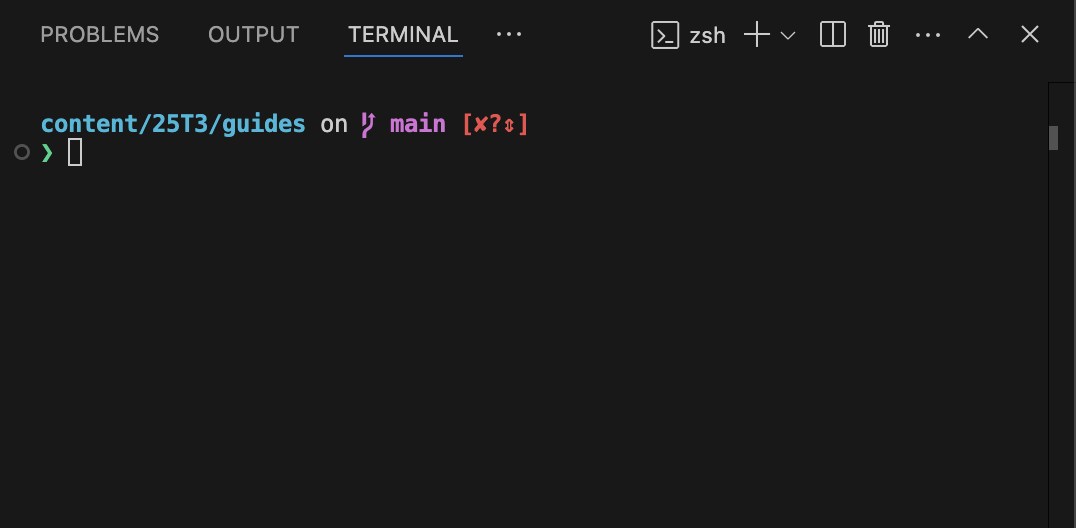
VSCode will open any terminal that is available on your OS.
Git
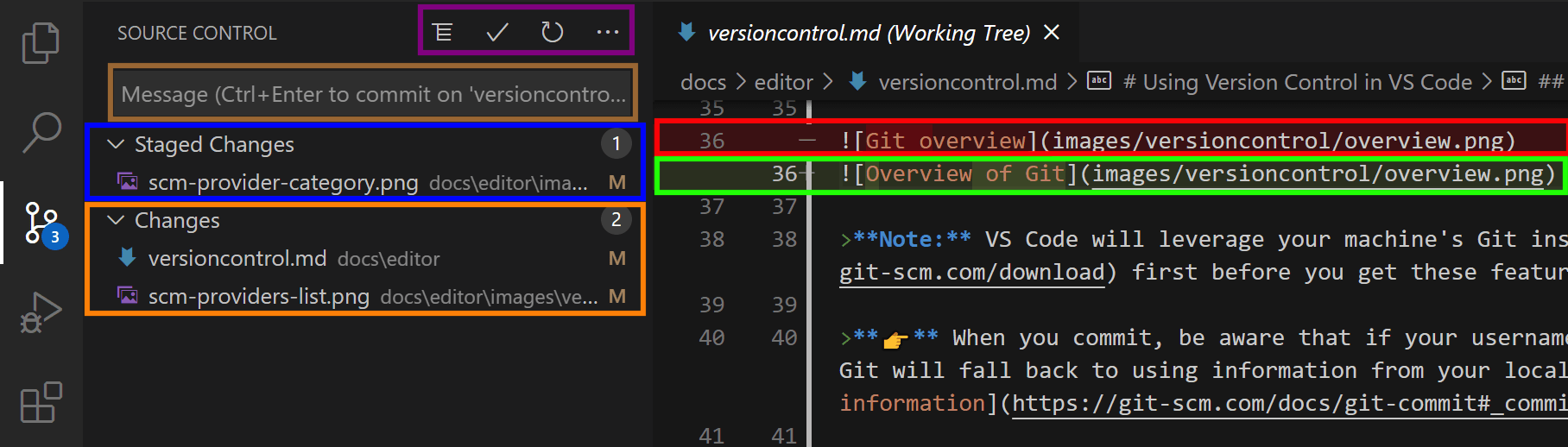
- Removed lines (red): Any removes lines are highlighted in red.
- Added lines (green): Any added lines are highlighted in green.
- Staged changes list (blue): Changes that are staged and will be committed.
- Changes list (orange): Changes that are not staged and won’t be committed.
- Message (brown): Git commit message box.
- Git commands (purple): Additional git commands e.g. commits, pushing/pulling.
Read more on how to use Git in VSCode.
Extensions
We recommend installing these extensions: